Last updated: 29 Aug 2025
“Library locking” refers to the feature enabling various aspects of a survey to be “locked” when created from a template containing locking attributes. All aspects of a form’s editing are available to be locked through the assigning of “locking profiles” at the form, question or group level. These locking profiles can be assigned granular “restrictions” that group together locking functionalities. Alternatively, the form can be fully locked down, preventing all aspects of editing.
Currently, only locking set within the XLSForm itself is supported, but will be incorporated into the formbuilder at some point in the future.
This feature may be useful in a large, distributed team setting where a standard template is used, with some locked features, and each team can make necessary local adjustments for their needs. The creator of the template can continue to make updates, but the locks will restrict changes to specified aspects of the form for those who create a project based on the template.
Locking aspects of a form is separate from managing project permissions.
Restrictions
There are three levels of restrictions that can be set:
Additionally, there is a kobo--lock_all boolean that can set in the settings
sheet that will render the survey completely locked.
kobo--lock_all boolean
If kobo--lock_all is set to True, then all additional granular restrictions
are redundant as the form is fully locked down. If it is set to False or
omitted from the settings sheet, then defined locking profiles can be used to
control the locked behaviour:
settings sheet
kobo–lock_all |
|---|
true |
settings |
The accepted values for kobo--lock_all are the same as in the survey sheet
that
pyxform supports.
No error will be thrown if an invalid value is used, only the form will not
function as intended from the user’s perspective.
Note that the restriction name, such as choice_add below, is
predefined and only the restrictions listed below are valid
options.
Question-level restrictions
Name |
Description |
|---|---|
|
Add new choices to a |
|
Remove an existing choice from a |
|
Edit a choice |
|
Edit a choice |
|
Reorder the choices of a |
|
Delete a given question |
|
Edit an existing |
|
Edit a question’s settings (other than |
|
Edit a question’s skip logic settings ( |
|
Edit a question’s validation criteria settings ( |
Group-level restrictions
Name |
Description |
|---|---|
|
Delete group modal Delete everything button (or delete group button if paired with |
|
Delete group modal Ungroup questions button (or delete group button if paired with |
|
Edit a group |
|
Adding or cloning questions inside given group (children groups included) |
|
Delete any question from given group (children groups questions included) |
|
Changing order of questions inside given group (children groups included) |
|
Changing All group settings from given group Settings |
|
Changing Skip Logic from given group Settings |
Form-level restrictions
Name |
Description |
|---|---|
|
Changing form appearance from Layout & Settings |
|
Replacing form using Replace Form modal |
|
Button for grouping questions |
|
Using Insert cascading select option and each Add Question and Clone Question button |
|
Changing any questions order |
|
Edit languages in Translations Modal |
|
Edit meta questions from Layout & Settings |
XLSForm configuration
There are three sheets where locking profiles are defined and set: survey,
settings and kobo--locking-profiles. The sheet of kobo--locking-profiles
is not officially supported by pyxform and
is KoboToolbox-specific.
Form-level restrictions are defined in the settings sheet and question and
group-level restrictions are defined in the survey sheet.
From within the kobo--locking-profiles sheet, all the locking profiles are
defined in a matrix structure, using the keyword “locked” to assign a
“restriction” to a specific “profile”. For example:
kobo–locking-profiles
Define the profiles and assign them restrictions. There is no limit on the
number of profiles that can be defined (profile_1, …, profile_n) but there
are only three colours that differentiate their locking appearance in the
formbuilder.
restriction |
profile_1 |
profile_2 |
profile_3 |
|---|---|---|---|
choice_add |
locked |
||
choice_delete |
locked |
||
choice_label_edit |
locked |
||
choice_order_edit |
locked |
locked |
|
form_appearance |
locked |
||
kobo–locking-profiles |
Note that not all valid restrictions need to be included in the
restriction column, but an error will be thrown if an invalid
restriction is included.
settings sheet
Set form-level restrictions and kobo--lock_all boolean.
kobo–locking-profile |
kobo–lock_all |
|---|---|
profile_3 |
false |
settings |
Note that omitting kobo--lock_all from the
settings sheet is equivalent to setting it to False.
survey sheet
Set question and group-level restrictions.
type |
name |
label |
kobo–locking-profile |
|---|---|---|---|
select_one countries |
country |
Select your country |
profile_1 |
select_one cities |
city |
Select your city |
profile_2 |
survey |
choices sheet
No restrictions can be set in the choices sheet.
list_name |
name |
label |
|---|---|---|
countries |
canada |
Canada |
countries |
usa |
United States of America |
cities |
vancouver |
Vancouver |
cities |
toronto |
Toronto |
cities |
baltimore |
Baltimore |
cities |
boston |
Boston |
choices |
This example XLSForm can be downloaded here.
Import locked XLSForms
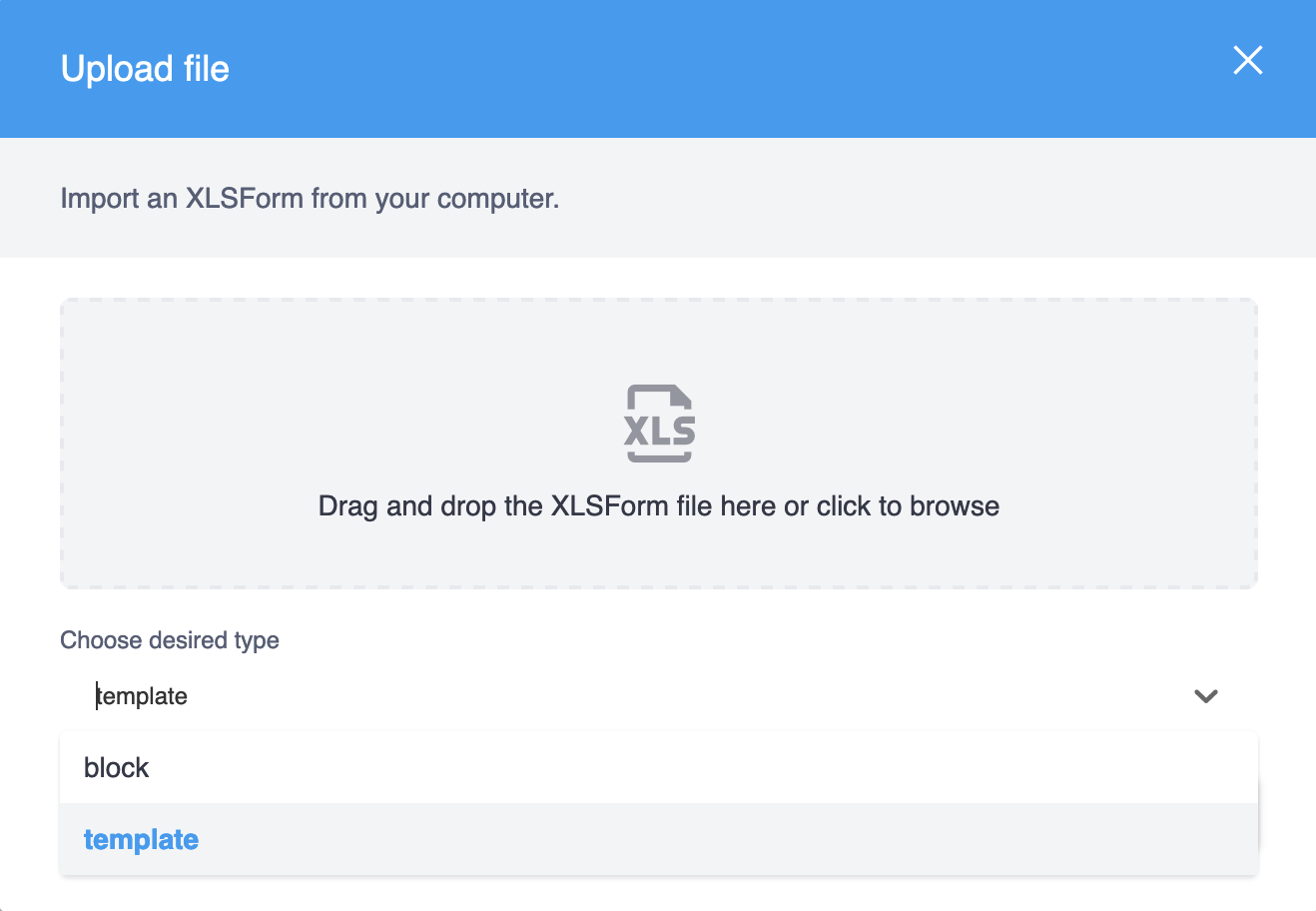
Import your XLSForm as a template through the KoboToolbox UI by navigating to
your Library and clicking on NEW and then Upload. Ensure that you
select template from the Choose desired type drop-down menu and then
import your XLSForm.
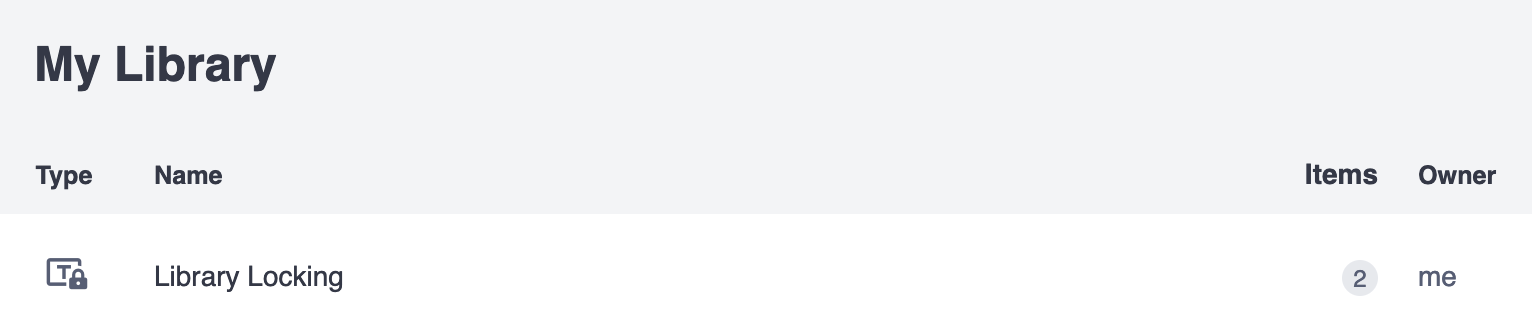
The locked template will now show in your library list view with a lock symbol.
Create project from locked template
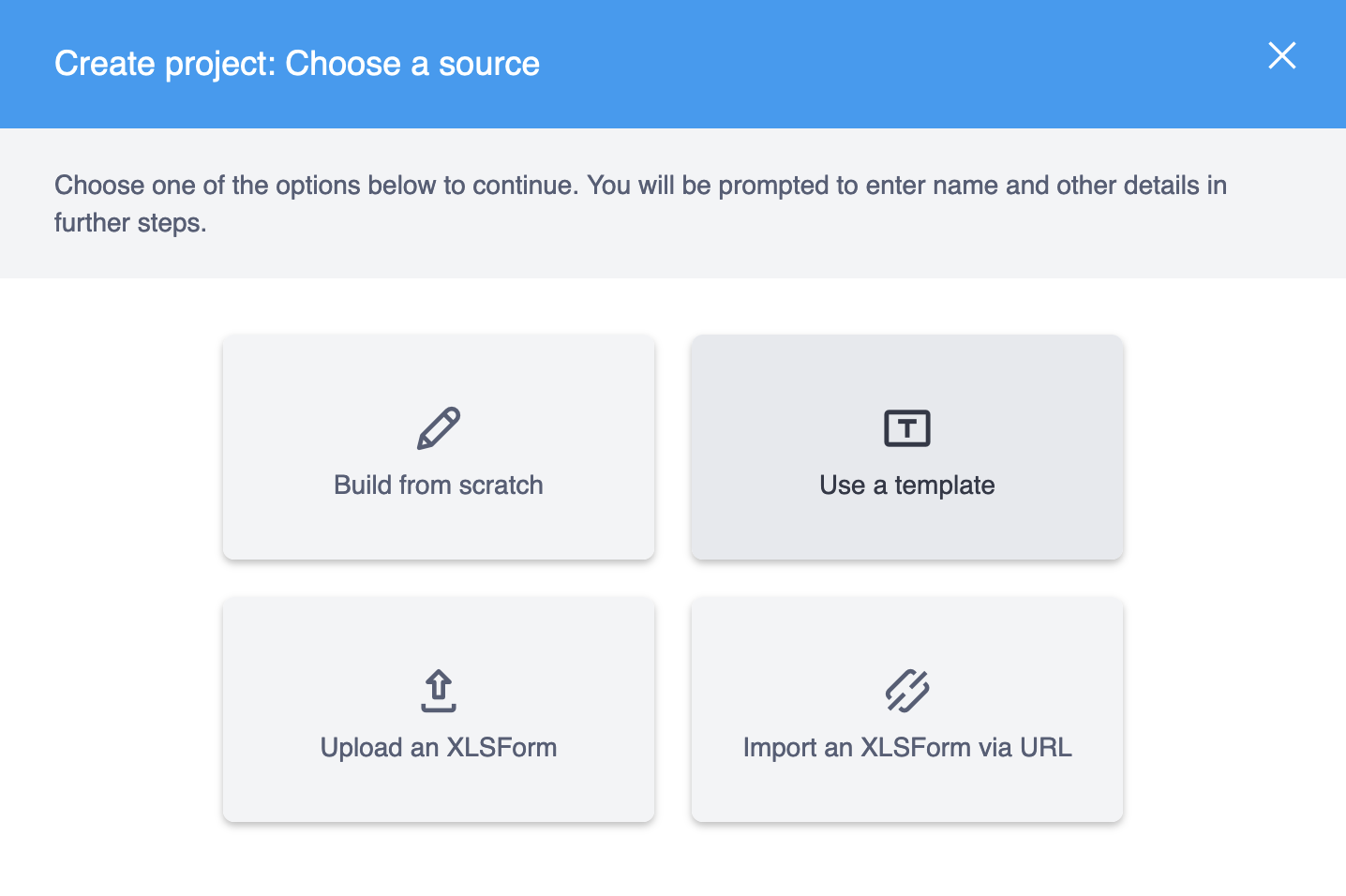
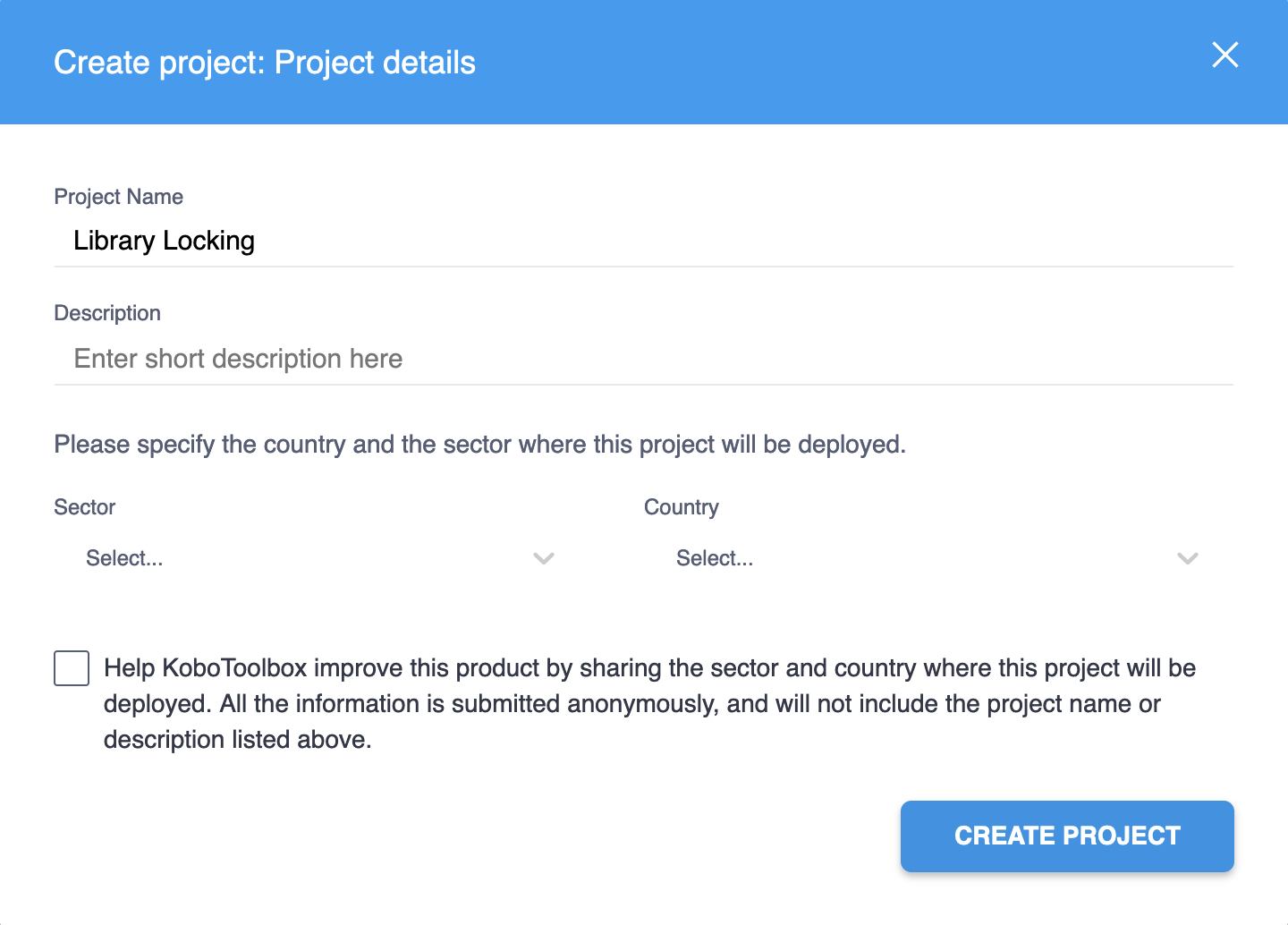
Once a locked template has been added to your library – either directly through importing an XLSForm as a template, creating a template based on a locked survey or adding a locked template from the public collections – you can create a new project. In the Projects section of the UI, click on NEW and then Use a template.
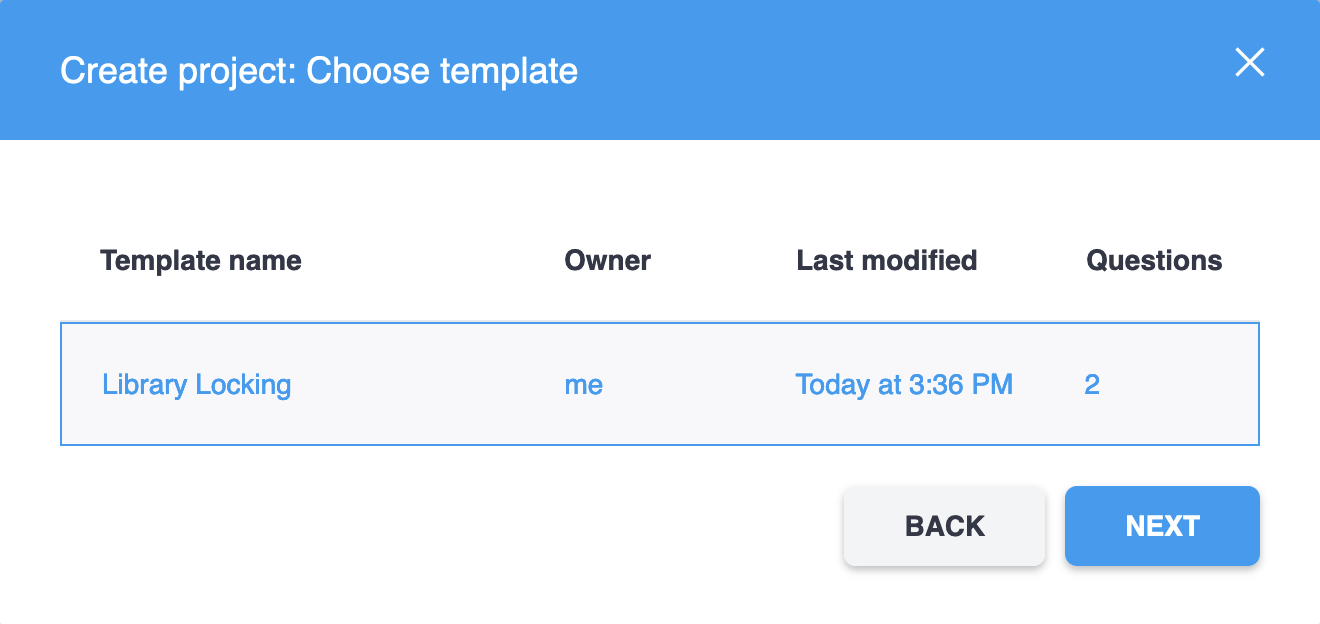
Choose the locked template you want to use to create the new project.
From there, continue to create the project.
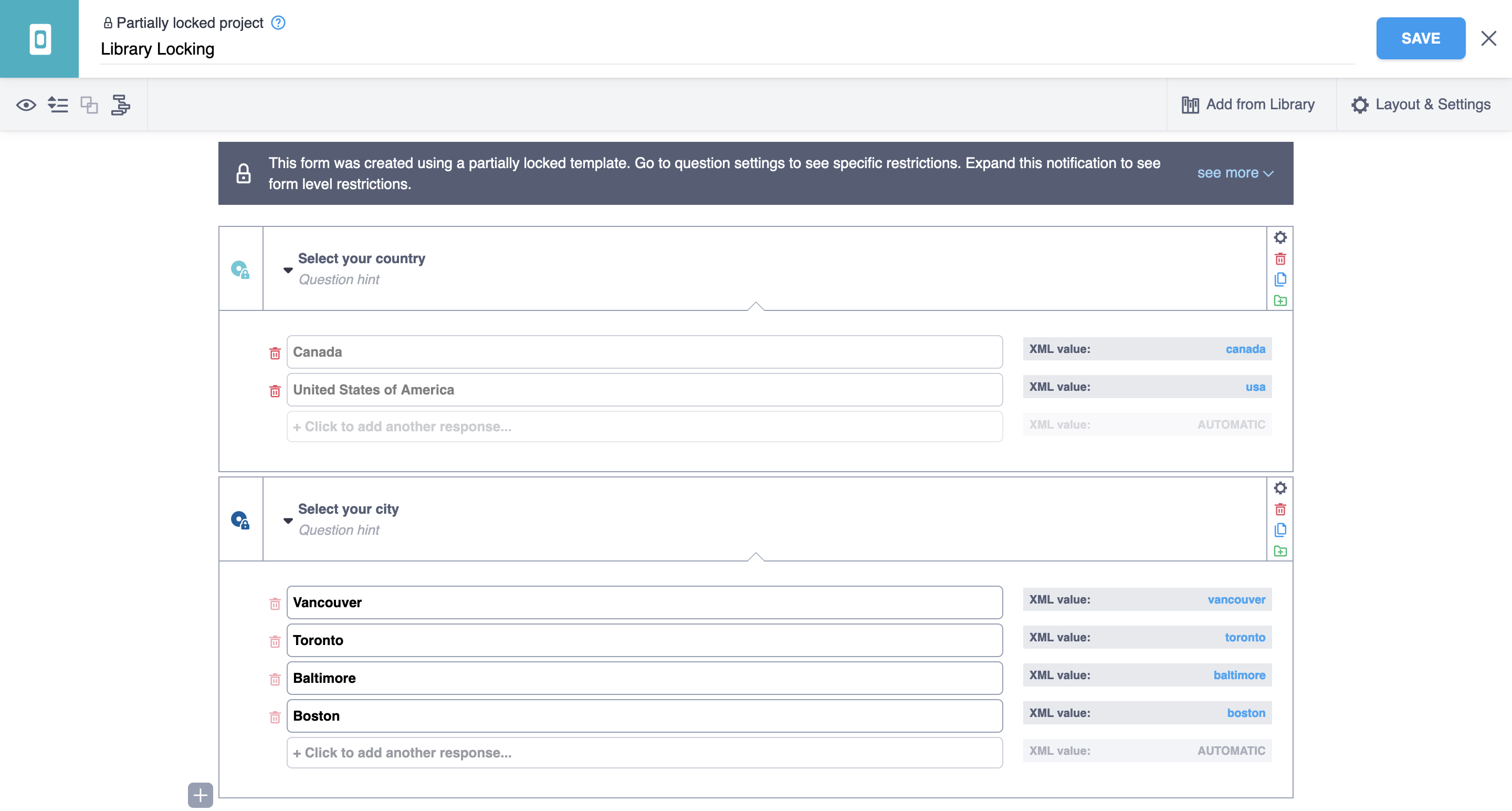
When this example locked template is used to create a new project, the formbuilder will look like the following:
The grayed out areas are those that have been disabled through the restrictions.
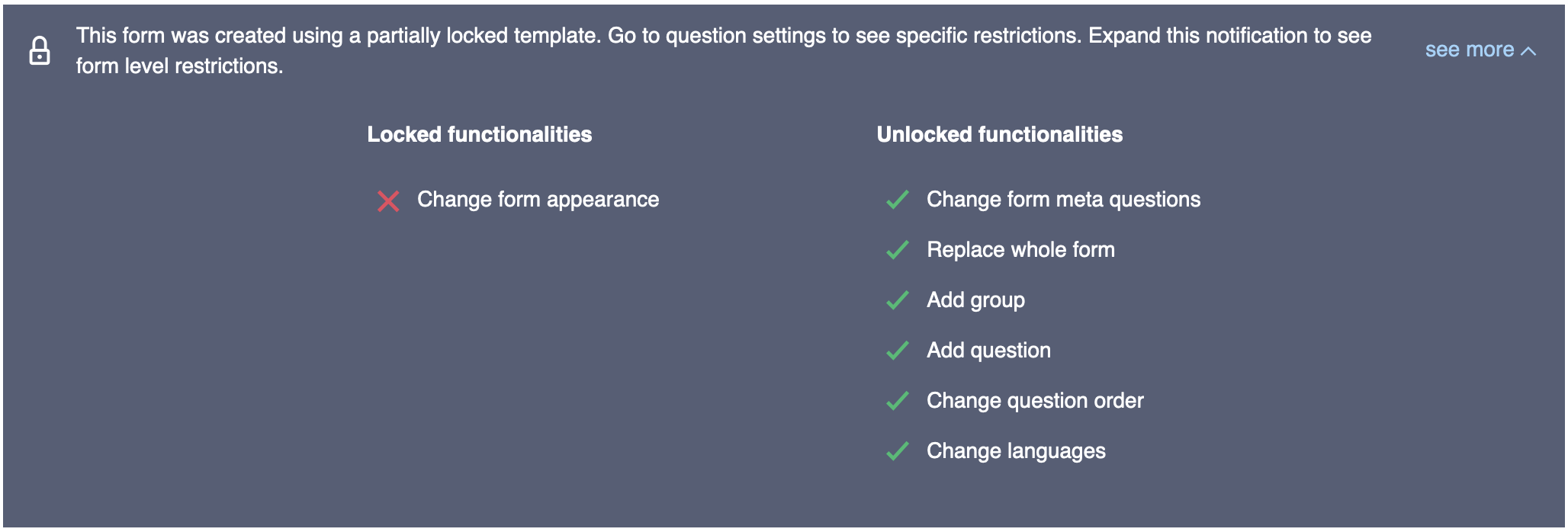
A dialogue box above the first question will show an overview of some of the form’s restrictions.
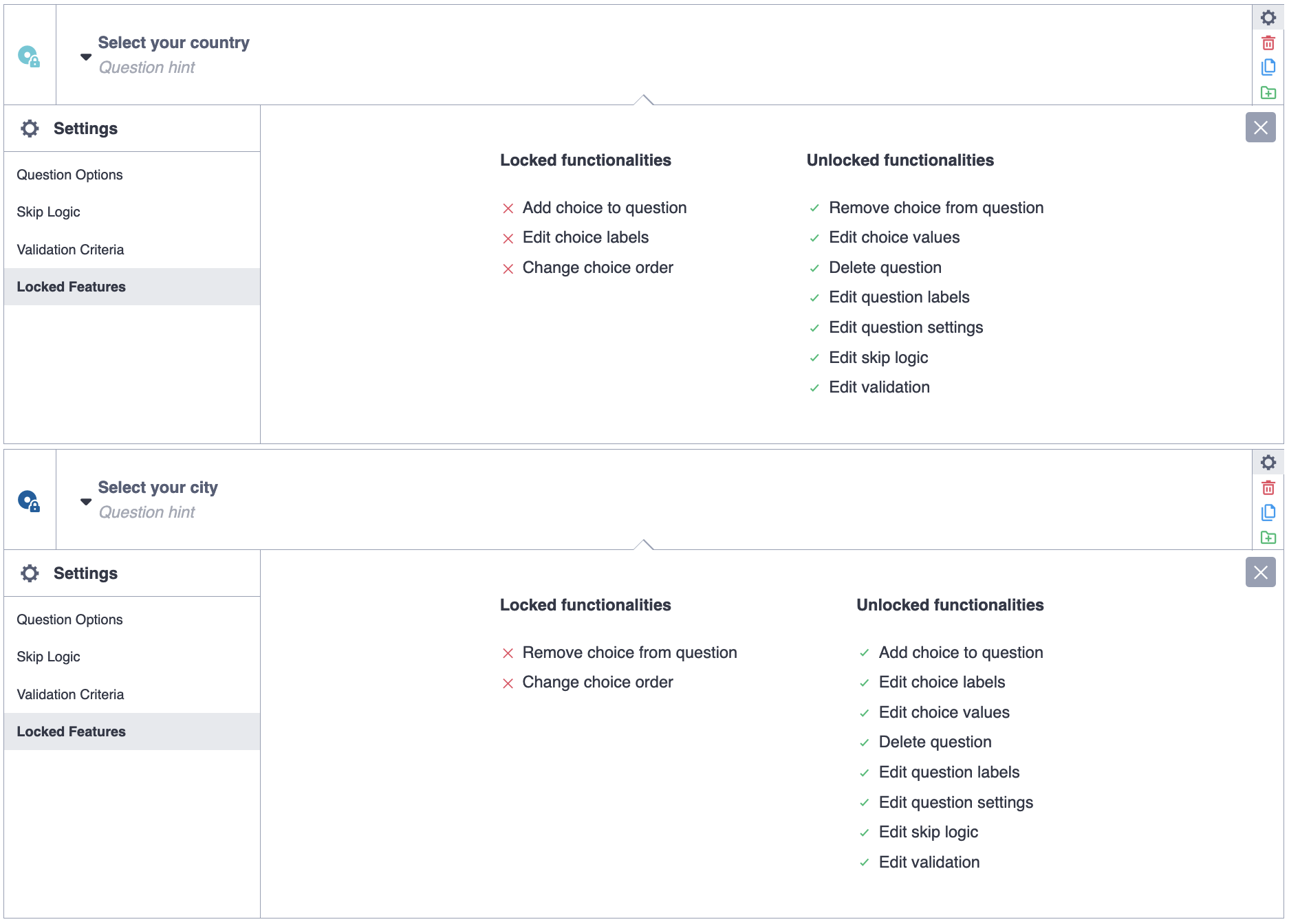
Each question with locking profiles will display, in its settings, which restrictions have been set.
Some form-level settings will also be greyed out.
Form validation
The following cases will currently throw a FormPackLibraryLockingError:
If a locking profile name (column header in the
kobo--locking-profilessheet) is “locked” (the same as the locking keyword)If a restriction listed in
kobo--locking-profilesis invalid (not in the list of predefined restrictions)If there is a sheet called
kobo--locking-profilesbut norestrictioncolumnIf no locking profiles are defined (column headers in the
kobo--locking-profilessheet)
Validation of the XLSForm library locking features will be expanded in the future.
Caveats
In some spreadsheet editors, two single dashes (--) are automatically
converted to an m-dash (—), therefore making it difficult to type kobo-- into
a cell. We therefore convert all instances of n- and m-dashes into two single
dashes (when prefixed with kobo). An XLSForm with the sheet name of
“kobo—locking-profiles” will be converted to kobo--locking-profiles and
similarly for the column headers.
JSON representation
There are two attributes of the asset where locking information can be accessed
and modified: asset.summary and asset.content.
If kobo--locking-profile is a column name in the survey sheet, it will also
be listed in the asset.summary.columns array.
In asset.summary, the following two Boolean attributes describe an overview of
the form’s locking structure:
lock_all, andlock_any
The logic by which each of those Booleans are set is as follows:
lock_allisTrueonly ifkobo--lock_allis set toTruein thesettingssheet, otherwise it’sFalselock_anyis set toTrueif any of the following cases areTrue:lock_allisTrue,A
kobo--locking-profileis set in thesettingssheet, orAt least one
kobo--locking-profileis set in thesurveysheet
In the example above, the following will be present in the asset.summary:
{
  ...,
  "columns": [
    ...,
    "kobo--locking-profile"
  ],
  "lock_all": false,
  "lock_any": true,
  ...
}
In asset.content, an attribute of content.kobo--locking-profiles exists as
an array of JSON objects with the following structure:
[
  {
    "name": "profile_1",
    "restrictions": [
      "choice_add",
      "choice_label_edit",
      "choice_order_edit"
    ]
  },
  ...
]
In content.settings, the following will be present in a JSON object:
{
  "kobo--locking-profile": "profile_3",
  "kobo--lock_all": false
}
And finally in content.survey, each question that has been assigned a locking
profile will have a kobo--locking-profile attribute as follows:
[
  {
    "name": "country",
    "type": "select_one",
    ...
    "kobo--locking-profile": "profile_1"
  },
  {
    "name": "city",
    "type": "select_one",
    ...
    "kobo--locking-profile": "profile_2"
  },
  ...
]
Locking profiles and asset types
Of the four asset types (survey, template, question and block), only
templates and surveys handle library locking features and the locks are
enforced only on surveys. Practically, this means the following:
Assume an XLSForm containing valid locking features is imported:
If imported as a
block, then all traces of locking are excluded and/or stripped from the asset. This results in ablockasset that will be equivalent to the same form uploaded without any locking features;If imported as a
survey(imported through the Projects section) ortemplatethen all locks are intact:If, from within the formbuilder:
a question is added to the library, then all locks are stripped from the new
questionasseta group of questions is added to the library as a
block, then all locks are stripped
If a
templateis created from the lockedsurveyasset, then thattemplatewill inherit all the locks thesurveyhad (but since it is a template, you are able to edit the contents in the formbuilder),If a
surveyis created from a lockedtemplate, the survey will inherit all the locks that thetemplatehad
Original Asset Type |
Process/action |
Resulting |
|---|---|---|
|
import XLSForm file of locked |
locked |
|
create |
locked |
|
create |
not locked |
|
create |
not locked |
|
import XLSForm file of locked |
locked |
|
create |
locked |
|
create |
not locked |
|
create |
not locked |
|
import XLSForm file of locked |
not locked |
|
add locked |
not locked |
|
add locked |
not locked |
|
create |
not locked |
|
import XLSForm file of locked |
not locked |
|
add locked |
not locked |
|
add locked |
not locked |
|
create |
not locked |
※ These actions are not possible in the UI.
Terminology
kobo--lock_all
Attribute containing a Boolean value, set in the settings sheet and applies
all locking restrictions to the form and all questions and groups (rendering
granular locking profiles redundant).
kobo--locking-profile
Column name in the survey and settings sheets where the locking profile is
assigned to a question or group (in survey) or to the form (in settings).
kobo--locking-profiles
Sheet name where restrictions are assigned to profiles.
locked
Keyword used to assign a restriction to a profile in the
kobo--locking-profiles sheet.
Profile
The name assigned to a group of restrictions, defined in the
kobo--locking-profiles sheet. It is assigned to questions and groups in the
survey sheet and to the from in the settings sheet.
Restriction
A granular locking attribute that can be assigned to a profile and control the locking behaviour at the question, group or form level.
Unlocked
A form containing no locking attributes.